A guide to Genofeld
Six pages that take you through the program: from the first symbol to the finished export, from the conversation in a session to taking over data from a genealogy program. Each step uses the same words as the program.
- First stepsFrom a blank sheet to a finished picture – in eight steps.Find out more →
- In the sessionDrawing and listening at once: structure, order, showing, closing.Find out more →
- Cultural backgroundGroups in the family’s own words, shares in quarters, a suggestion from the parents.Find out more →
- Keyboard shortcutsAll the keys on one page – and what the mouse and your fingers do.Find out more →
- Phone and tabletBar at the bottom, sheets from below, drawing with a finger – and the limits.Find out more →
- From a genealogy programReading and writing GEDCOM: what comes along, what is missing, what to do next.Find out more →
In three sentences
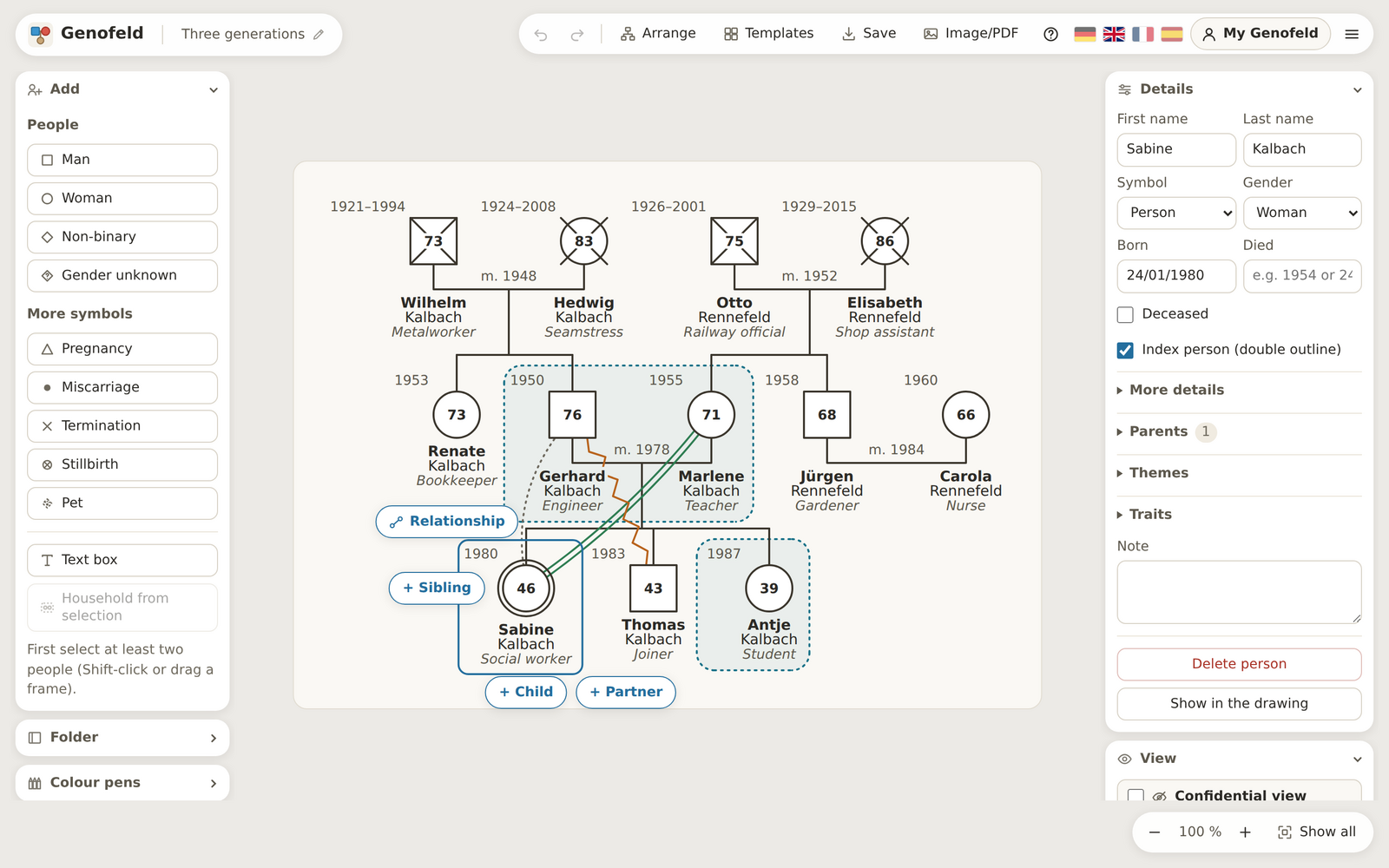
You open the program and start with one person – yourself, your client or a template. The selected person has “+ Partner”, “+ Child”, “+ Parents” and “+ Sibling”; with these, the family grows while someone is talking. At the end you arrange the drawing if you wish and export it as an image or PDF.
You do not need to sign in, and there is nothing to install. Without an account, your genograms stay in your browser’s storage – you also save important work as a file or in the optional account.
Which page you need
- Here for the first time: First steps – from a blank sheet to the export.
- Before a session: A genogram in the session – how to draw and stay in the conversation at the same time.
- For a cultural genogram: Cultural background – groups in the family’s own words, shares in quarters.
- Working faster: Keyboard shortcuts – all the keys on one page.
- On the move: Phone and tablet – what works differently with a finger.
- Data already there: Taking over data from a genealogy program – reading and writing GEDCOM.
Help in the program
In the program itself, the “Help” button is at the top right – with a short guide in six steps, notes on mouse and finger and the list of keyboard shortcuts. What each symbol means is explained under Genogram symbols; what else the program can do, under Features.
If you miss something while working or something does not work as it should: a short message to service@genofeld.de is enough – ideally with the step that led to the behaviour.