Drawing quickly while you listen
A genogram usually comes about in conversation. If you have to search through menus, you lose the thread. That is why Genofeld is built so that a person is in place within seconds and the family keeps growing from the selected person.
How to add the first person
When you first open the program, three options appear in the middle of the sheet: “Start with yourself”, “Open an example” and “Open file”. For another person, click “Man”, “Woman”, “Non-binary” or “Gender unknown” in the “Add” panel on the left. The symbol appears straight away in the middle of the drawing area, and a small field opens above it: you type the name, Tab moves on to the year of birth, Enter confirms both. Later, double-clicking the symbol opens the same field again. Usually the first person is the index person – the “Index person (double outline)” tick box in the “Details” panel gives them the second outline.
Four buttons, and the family grows
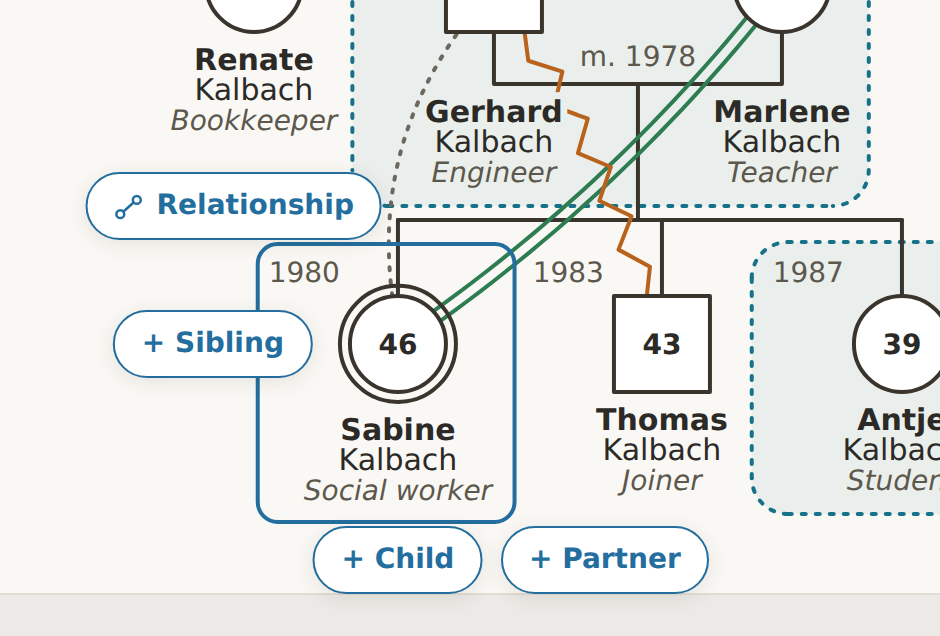
When a person is selected, four buttons appear next to them – and only the ones that can do something at that moment: someone who already has parents is not offered “+ Parents”.
- + Partner places a person alongside and connects the two with a couple line. The other gender is suggested; you can change it with one click.
- + Child places a child one generation below: the first centred under the couple line, each further one to the right of it. People already there do not move aside; later, “Arrange” centres the row of siblings under the parents. The same button also appears on a selected couple line.
- + Parents adds a father and a mother one generation above, connects them as a couple and the child with the child line.
- + Sibling adds another child of the same parents – and adds the parents if there are none yet.
A fifth button is called “Relationship”. You drag from it onto another person – or you click it once and then click the second person. Genofeld then asks for the type of relationship, grouped into closeness, distance, conflict, directional, violence and own label. New people never push anything aside: if the preferred spot is taken, Genofeld looks for the nearest free one.
Keyboard instead of mouse
If you prefer to keep your hands on the keyboard, a few keys are enough: P, K, E and G for partner, child, parents and sibling of the selected person (the letters come from the German words), O for “Arrange”, A for “Show all”, the arrow keys to move, F2 for the name, Delete to delete, Ctrl+D to duplicate, Ctrl+Z and Ctrl+Y for undo and redo. The full list is under Keyboard shortcuts.
“Arrange” is a button, not an automatic
Many drawing programs align things in the background and in doing so move the very person you had deliberately placed at the edge. In Genofeld, each person stays where you put them. When you want to tidy up, press “Arrange”: Genofeld sorts by generation, places partners side by side and children by birth order with the eldest on the left, and makes sure that nothing overlaps. If you do not like the result, one click on Undo reverses it. Undo and Redo go back many steps; a drag counts as one step, not a hundred.
On a tablet and a phone
You can move the drawing area with one finger and zoom with two; the buttons are large enough to hit on the go. For a session with clients, a larger screen is more comfortable; for adding details in between, a phone is enough. Details are under Phone and tablet.
How a genogram comes about in conversation – which questions help in which order – is described on the page A genogram in the session.